Vertical Tabsby d4rulyn
Add to Chrome

Chrome extension · side panel

Your tabs, vertical, each showing the page itself.

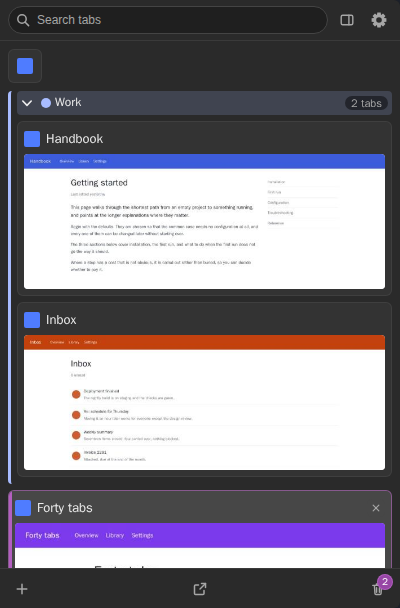
Vertical Tabs lists your open tabs top to bottom in Chrome’s side panel, which sits on the right of the window by default. Every tab gets a picture of the page it is showing, so you recognise a tab by what is on it rather than by a favicon you have seen forty times.

Requires Chrome 120 or later.

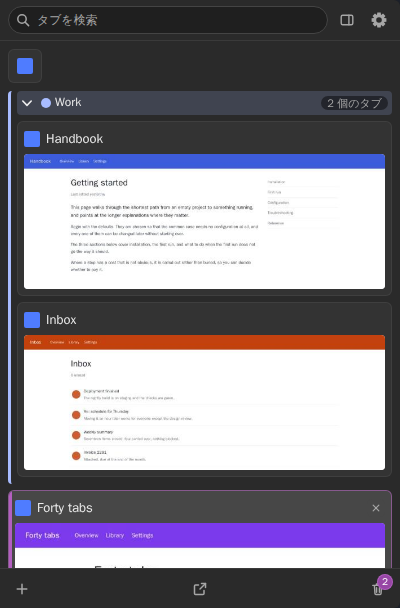
The Vertical Tabs side panel. A search box sits on top, then a tab group called Work holding the tabs Handbook and Inbox, then the active tab Forty tabs. Every card shows a preview of its page.
Chrome decides which side its side panel docks on. Right is the default for left-to-right languages; if yours is on the left, step 4 of the install notes shows where to change it.

01 · Features

What it does

Recognise a tab by the page itself

Chrome stacks tabs horizontally until the titles disappear. Vertical Tabs lists them top to bottom in the side panel instead, each with a picture of the page it is showing. A tab gets its first preview shortly after you show it for the first time; tabs you have never shown keep a dark placeholder.

What the preview shows is your choice

A preview is a photograph of the visible part of a page, and Chrome puts you back where you were when a page reloads — so a preview taken then can be a band of body text that identifies nothing. You pick what happens:

The top of the pagedefault
The preview stays on the header, the part that makes a page recognisable at a glance.
What it showed when it loaded
Frozen until you navigate again.
Wherever you are on the page
The preview follows you.

Search reaches into your other windows

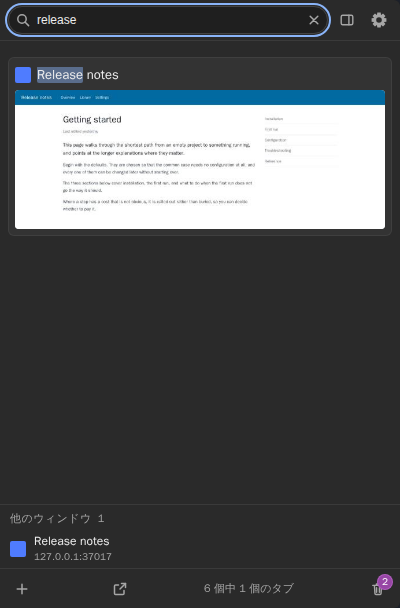
Search across titles and URLs — including tabs in your other windows, with one click to go there.

Press / in the panel (Ctrl+K and Ctrl+F work too) to jump to the search box, or Alt+Shift+S to open the panel with the cursor already there.

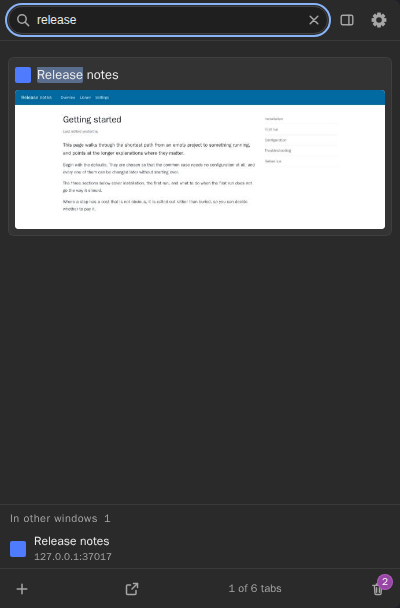
The panel with the word release typed into the search box: one matching tab card, and below it a result from another window.
Every window, not just this one. Choosing a result brings that window forward and opens the tab.

Tidy tabs without leaving the panel

  • Group by site: file loose tabs into one tab group per host, with undo.
  • Lock a tab so nothing in the panel can close it by accident.
  • A command palette on Ctrl+Shift+P for everything the panel can do, by name.
  • Recently used tabs, in the order you were actually on them.
  • Find duplicates, hibernate tabs you have not touched in days, save a set of tabs to reopen later, copy the window out as a Markdown list, open a pasted list of links, and keep a note that survives a restart.
  • Drag to reorder, pin, group, or move a tab to another window. Full keyboard control.

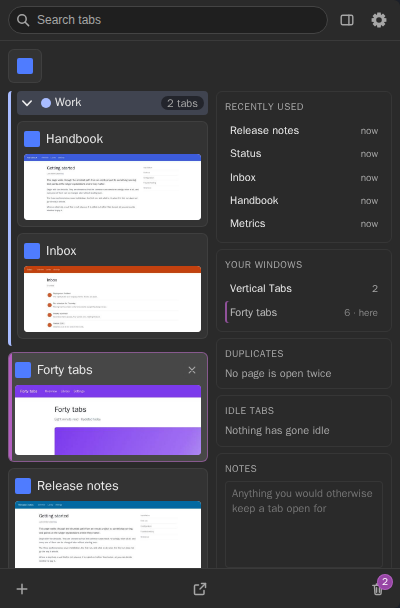
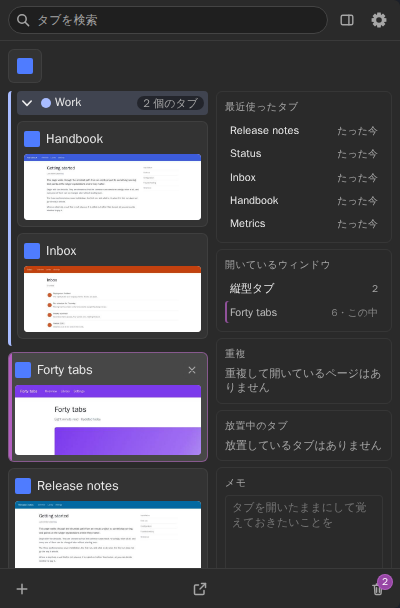
These tools sit in a column beside the tab list. Chrome will not let the side panel be narrower than 360 px, so the width left over is put to use. Pick the ones you want; unpick them all and the column goes away.

The panel with a tools column beside the tab list: Recently used, Your windows, Duplicates, Idle tabs and Notes.
The width Chrome insists on, spent on tidying tabs.

Arrange it your way

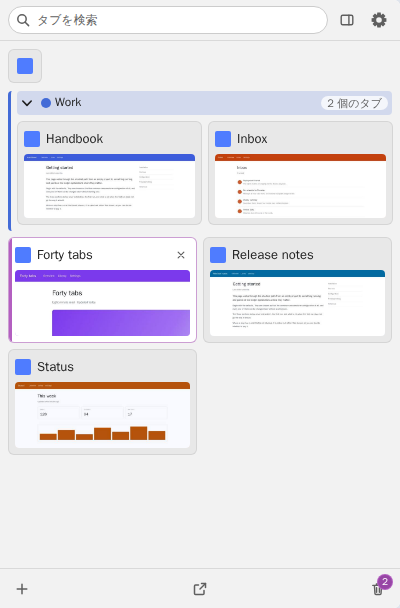
One to five columns, a card size that packs the row instead of leaving a gutter, light and dark themes, English and Japanese. The theme follows your system by default, and the language follows Chrome’s.

Want it narrower than Chrome’s side panel allows? Detach the list into a window of its own.

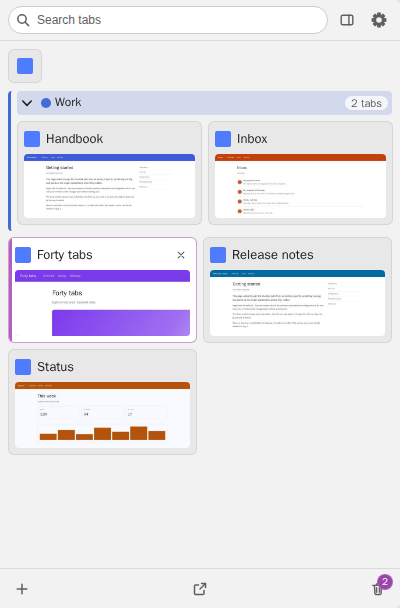
The panel in the light theme, with the tab cards laid out in two columns.
Light theme, two columns.

02 · Privacy

It does not talk to anything

No servers, no analytics, no accounts, no network requests of any kind. Previews are stored on your own machine and never leave it. An automated test checks that the extension makes no network requests, so adding a feature that did would make the test fail.

Collected
Nothing.
No personal information, browsing history, typed text or identifiers.
Sent
Nothing.
No external services, ads, analytics tools or crash reporting.
Stored
In your browser only.
Tab previews, your settings, and the tab sets and notes you save. They stay on your device and are removed with the extension.

The permission, said plainly

Taking a picture of a page requires Chrome’s permission to access that page, and there is no narrower way to do it. So the extension asks for access to all sites. Chrome words that as “Read and change all your data on all websites” (the host permission <all_urls>). What it does with that access is two things:

  • asks Chrome for a screenshot of the tab you are already looking at, which is the preview itself;
  • reads one number, the page’s scroll position (window.scrollY), so a preview can stay on the top of the page.

It does not read the content of a page, change it, or add content scripts. The image and the number stay on your device.

Your controls

  • Incognito tabs are never captured, whatever the settings say.
  • Add sites to “Never capture previews on these sites” and they stay out of the cache. Previews already stored for a site are deleted when you add it.
  • “Clear preview cache” deletes every stored preview at once.
  • Turn off “Keep previews after Chrome restarts” and the cache lasts only for the browser session.

Read the privacy policyin Japanese Read the source

03 · Install

Install in four steps

Requires Chrome 120 or later.

  1. Add it from the Chrome Web Store

    Add to Chrome

  2. Allow it on all sites

    Open chrome://extensions, click Details on Vertical Tabs and set Site access to “On all sites”. Chrome refuses every screenshot otherwise, so no previews can be produced at all.

  3. Open the panel

    Click the toolbar icon (pin it from the puzzle-piece menu to keep it in view), or press Ctrl+Shift+E (Cmd+Shift+E on macOS). Chrome only lets an extension open a side panel in response to something you do, so it never appears on its own: open it yourself in each window.

  4. Put it on the right

    Chrome decides which side the side panel docks on, not the extension. It is a browser setting, and it defaults to the right for left-to-right locales. If yours is on the left, open Chrome settings › Appearance, find the side panel position and set it to Right.

Prefer to install a zip by hand? The install guide walks through itin Japanese

04 · FAQ

Questions people ask

Does it send anything anywhere?

No. It has no server, no analytics and no accounts, and it makes no network requests. Previews are kept in the browser’s own storage on your machine and are deleted with the extension.

Why does it need access to all websites?

Chrome only lets an extension take a screenshot of a page it has access to, and a tab can be on any site. The access is used to ask Chrome for a screenshot of the tab you are already looking at, and to read that page’s scroll position. The details are under Privacy above.

The panel opened on the left. Can it be on the right?

Yes, but it is Chrome’s setting rather than the extension’s: Chrome settings › Appearance, side panel position, Right. No extension can move the panel for you.

The extension shows a one-time hint, with a button that opens that settings page, when it sees the panel on the left. Chrome below 140 cannot tell which side the panel is docked on, so the hint does not appear there.

Why does one of my tabs have no preview?

A tab you have never shown keeps a dark placeholder until you show it. Pages Chrome never lets an extension capture (chrome:// pages, the Chrome Web Store, other extensions’ pages, data: and about:blank) say so on the card. file:// pages need “Allow access to file URLs” on the extension’s details page. Incognito tabs and sites you excluded are never captured.

No previews at all? Check Site access, in step 2 above.

Can I make the panel narrower?

Chrome will not let its side panel be narrower than 360 px, and an extension cannot change that. You can pop the tab list out into a window of its own, which opens at 260 px, or choose a smaller card size.

Does it hide Chrome’s own tab strip?

No. An extension cannot hide Chrome’s horizontal tab strip. If your Chrome has a vertical tab strip of its own, turn that one off, or you will end up with two vertical lists.

Is the source available?

Yes. It is MIT-licensed and on GitHub, tests included. Bugs and requests go to the issue tracker.